
DIY Laptop Troubleshooting: Common Issues and Quick Fixes


Identifying Common Laptop Issues
Laptops, like all electronics, can run into issues over time. Fortunately, many common problems can be addressed without professional help. This guide will walk you through DIY troubleshooting for typical laptop issues, helping you save both time and money.
Slow Performance
A sluggish laptop can be frustrating, but there are a few steps to speed things up. Start by checking for unnecessary programs running in the background. Open the Task Manager and end tasks that you don't need. Also, consider disabling startup programs that slow down boot time.
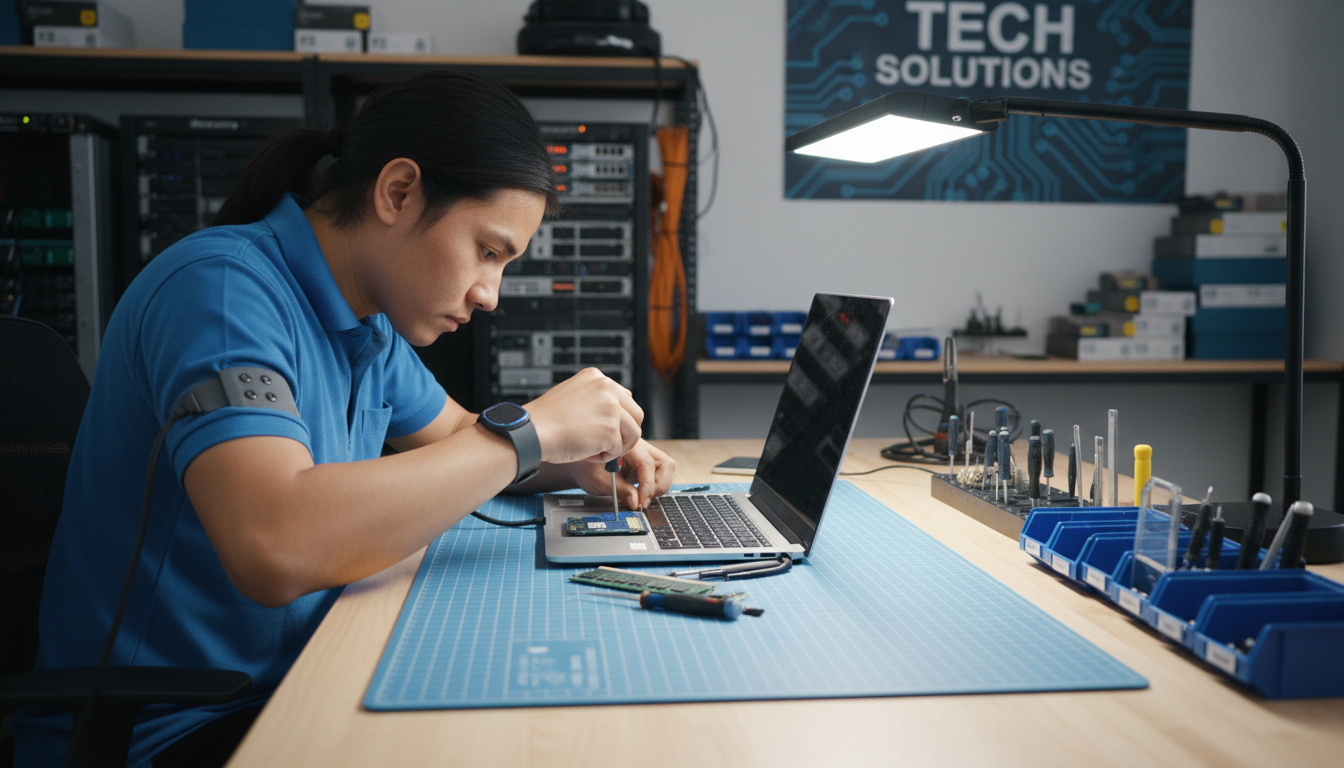
Another tip is to clear out temporary files and perform a disk cleanup. This can free up valuable space and improve performance. If your laptop still lags, consider upgrading the RAM for a more significant boost in speed.
Battery Not Charging
If your laptop battery isn't charging, it could be due to a faulty cable or adapter. First, inspect the charger for any visible damage. If everything looks fine, try plugging it into a different outlet. Sometimes, a simple change in power source can resolve the issue.
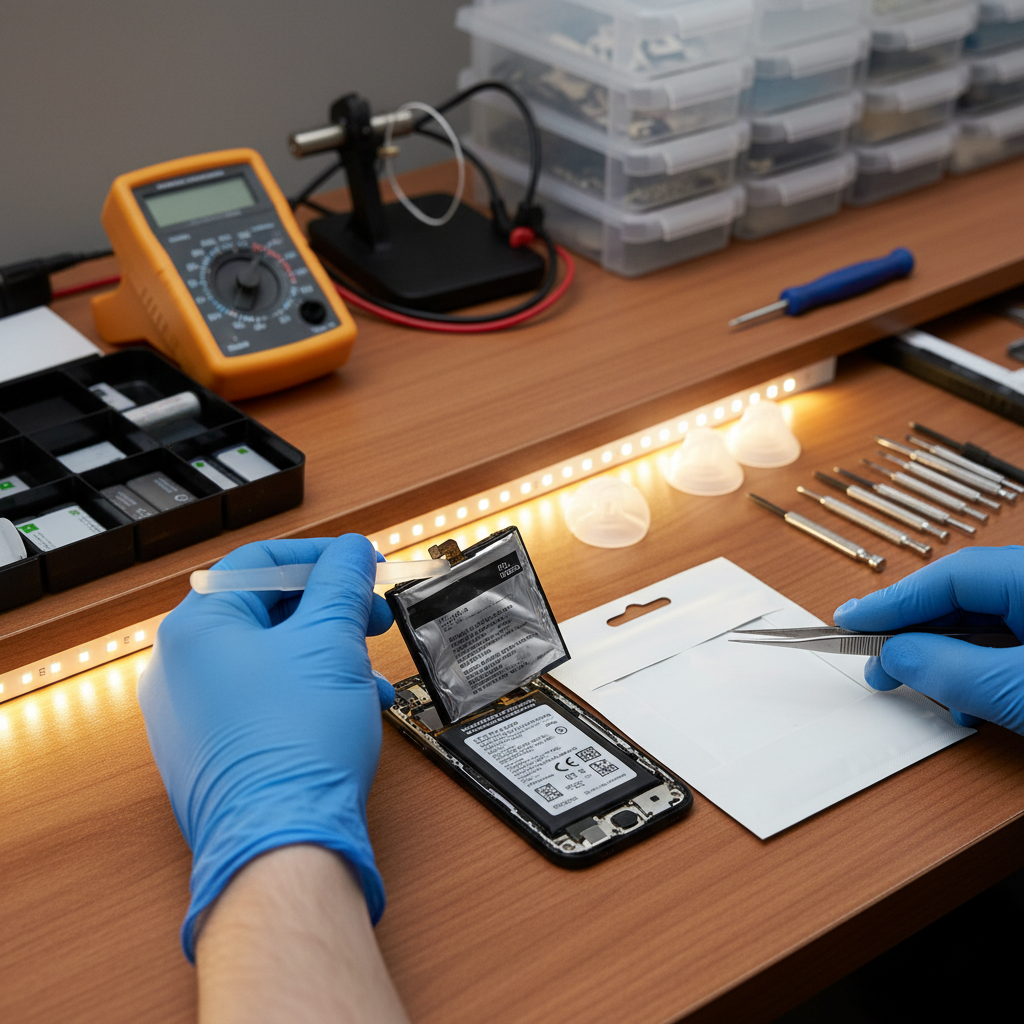
In cases where the charger appears functional, you might need to update or reinstall battery drivers. Go to the Device Manager, find the battery section, and update the drivers. This can often solve charging problems.
Overheating
Overheating is a common problem that can cause your laptop to shut down unexpectedly. To prevent this, ensure that your laptop's vents are not blocked. Use a soft brush or compressed air to clean out any dust accumulation.
Consider using a cooling pad to help maintain an optimal temperature. Reducing the number of applications running simultaneously can also decrease heat generation.

Network Connectivity Issues
Struggling to connect to Wi-Fi can be a major inconvenience. Start by checking if the issue is with the router by connecting another device. If the router is working fine, try restarting your laptop's network adapter. This can often resolve connectivity issues.
- Go to Control Panel and select Network and Sharing Center.
- Click on Change adapter settings.
- Right-click on the wireless adapter and choose Disable, then Enable.
If problems persist, updating the network drivers may be necessary. This can be done through the Device Manager.
Screen Issues
If your screen is flickering or showing unusual colors, it might be due to a loose connection or outdated graphics drivers. First, check the cable connections if you're using an external monitor. Tighten any loose connections to see if this solves the problem.
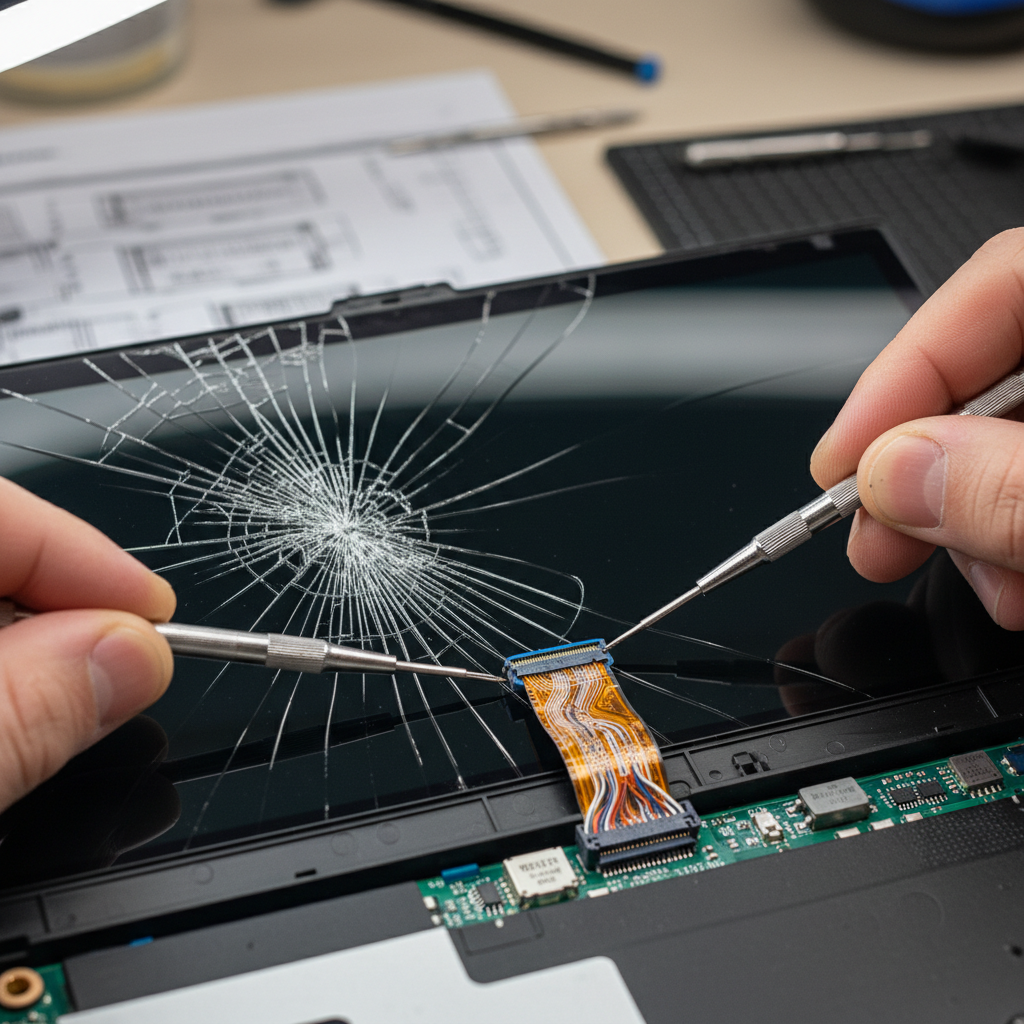
For internal screens, updating or reinstalling the graphics drivers can often fix display issues. If these solutions don't work, you may need to have the hardware professionally inspected.
Conclusion
While laptops can encounter various issues, many are easily fixable with a bit of troubleshooting. By following these tips, you can address common problems and keep your laptop running smoothly. Remember, if an issue persists, seeking professional help might be necessary to avoid further damage.