
DIY Laptop Troubleshooting Tips Before Calling a Repair Service


Having trouble with your laptop and considering calling a repair service? Before you do, try these DIY troubleshooting tips to see if you can fix the issue yourself. Many common laptop problems can be resolved with a few simple steps, saving you both time and money.
Check the Power Supply
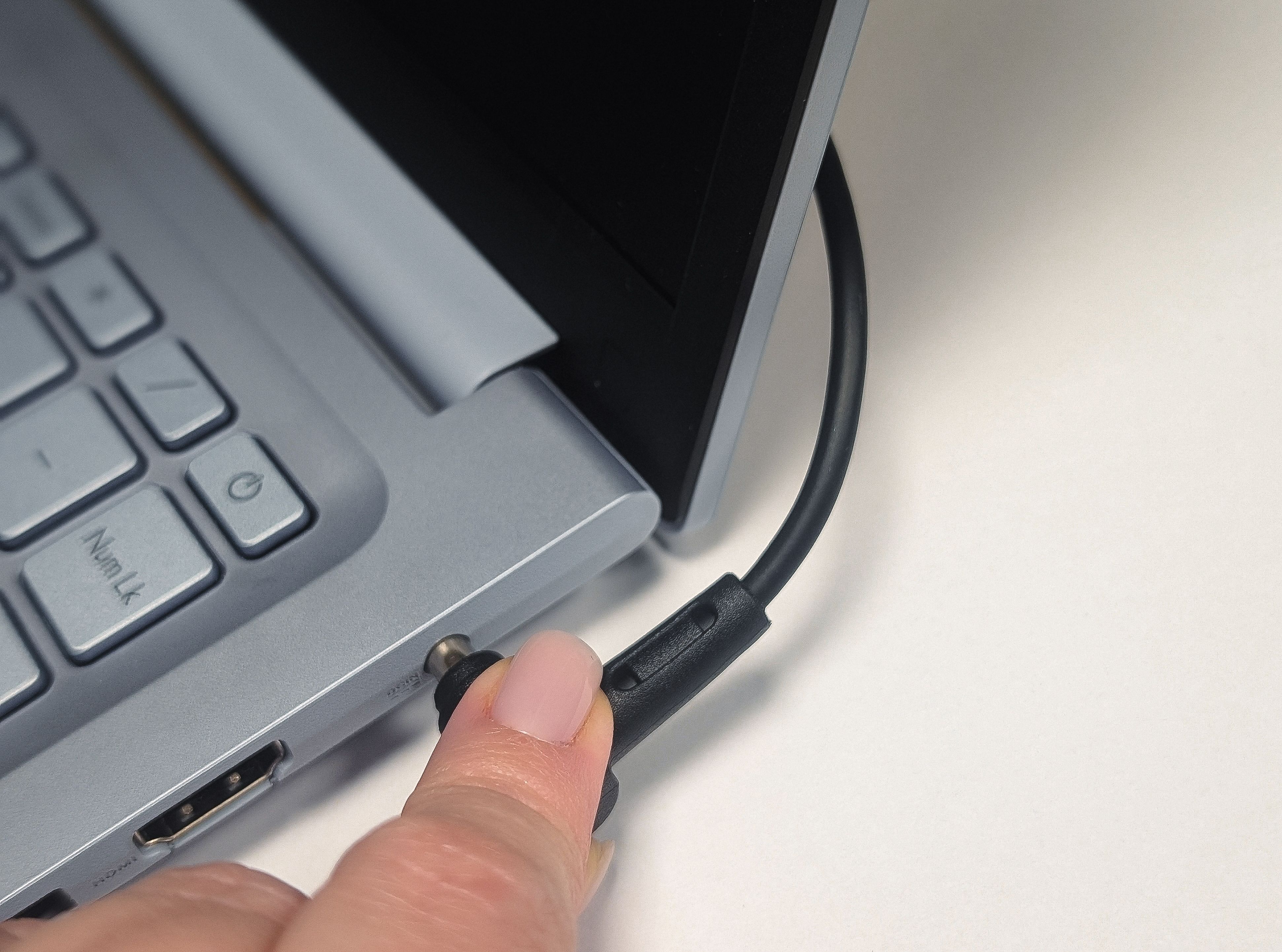
The first step in troubleshooting any laptop issue is to ensure it’s receiving power. Check if the power cable is securely connected to both the laptop and the wall outlet. If you’re using a power strip, make sure it’s switched on. Also, verify that the battery is charged or not defective.
Inspect for Overheating
Laptops can overheat due to dust buildup or blocked vents. If your laptop shuts down unexpectedly or feels excessively hot, it might be overheating. Place the laptop on a hard, flat surface to improve airflow and use a cooling pad if necessary. Clean the vents with compressed air to remove dust particles.
Use the Built-in Diagnostics
Many laptops come with built-in diagnostic tools. On Windows, you can access the “Windows Memory Diagnostic” tool, while Mac users can use “Apple Diagnostics” to check for hardware issues. Run these tools to identify any potential problems.

Check Software Issues
Software problems can cause your laptop to freeze or run slowly. Ensure your operating system and all applications are up to date. Uninstall any software that you suspect might be causing issues. Running a complete virus scan can also help identify and remove malicious programs.
Boot in Safe Mode
If your laptop is not starting correctly, try booting it in Safe Mode. This will load only the essential drivers and could help you pinpoint the problem. On Windows, press F8 during startup, and on Mac, hold the Shift key while booting.

Test Hardware Components
If you suspect a hardware issue, test components like the RAM and hard drive. You can use tools like “MemTest86” for RAM testing and “CrystalDiskInfo” for checking the hard drive’s health. Replacing faulty components might solve your problem without professional help.
External Devices
Sometimes, peripherals like a mouse or printer can cause issues. Disconnect all external devices and see if the problem persists. If the laptop works fine without them, reconnect each device one at a time to identify the culprit.

Conclusion
By following these DIY troubleshooting tips, you may resolve many common laptop issues on your own. However, if the problem persists, it might be time to call a professional repair service. Remember, tackling the problem yourself first can save you both time and money.